|
USBswitchCMD
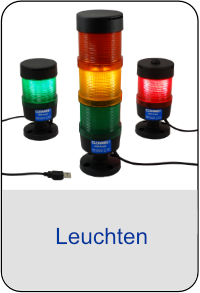
For easy access to the Cleware switching devices like USB-Switch or USB-TrafficLight, a command line tool is available. Using this program it is possible to access the device from many program or in batch processing The program is called USBswitchCMD and is called with one or more of the following options:
- -n device take the USB-Switch with the serial number device
- 0 turn off (0 is the number 0)
- 1 turn on
- R turn on red traffic light
- Y turn on yellow traffic light
- G turn on green traffic light
- O turn off all traffic light
- -# switch when the device consists of multiple switches, choose this one, first=0
- -i nnn interval test, turn the device on and off, time interval nnn ms, in an endless loop
- -I nnn interval test, turn on, wait nnn ms and turn off
- -p t1 .. tn pulse mode, the switch will be turned on for 0.5 seconds then t1 seconds paused, turned on 0.5 s and t2 s pause, etc. after processing the last argument the switch turns off and the program terminates.
Samples:
When a light should turn on when a new mail arrives, call the command in the rules of Outlook, e.g.
USBswitchCMD 1
Given an USB-Switch3, when the third socket should be turned on, use this
USBswitchCmd 1 -# 2
This is a real sample for a cost effective control of a firework battery. The single shots are fired by closing the contact of an USBswitch3,5' for a short time. The pauses are 1 second, 4 seconds, etc.
USBswitchCMD -p 1 4 5 7 12 2 7
To turn the red light of an USB-TrafficLight on and yellow and green off, just call
USBswitchCMD R
|
 |